
Query params and path variables
The Params tab holds the two kinds of values that go into a URL: query parameters after the ?, and path variables that fill :name segments. This page shows how to add, switch off and bulk-edit them.
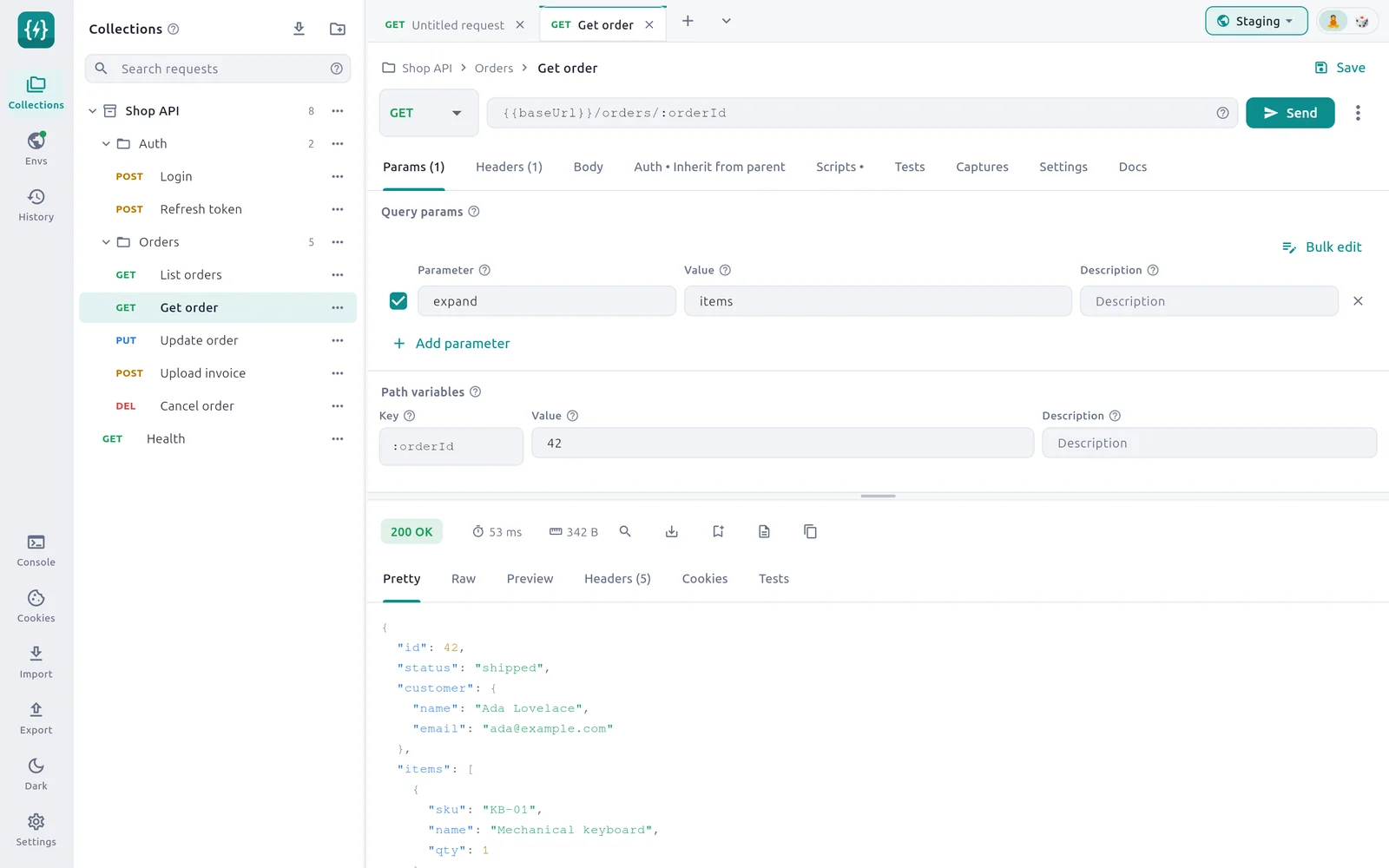
- 1URL — The :orderId segment creates a path variable row below.
- 2Tick box — Untick a row to keep it but not send it.
- 3Parameter — The name of the query parameter.
- 4Value — Its value. Variables are allowed.
- 5Bulk edit — Edit all rows as text, one per line.
- 6Path variable key — Comes from the URL and is read-only.
- 7Path variable value — Replaces :orderId when you send.
In the picture, the request goes to {{baseUrl}}/orders/42?expand=items.
Query parameters
A query parameter is a name and value pair added to the end of the URL, such as ?page=2&limit=20. APIs use them to filter, sort and page results.
Add a query parameter
Open the Params tab.
Select Add parameter under Query params.
Type the name in Parameter and the value in Value.
Optional: type a note in Description. It is for you and your team and is never sent.
When you send, the rows that are ticked and have a name are added to the URL in order. The tab label counts them: Params (2).
Switch a row off or remove it
- Untick the box at the start of a row to keep it without sending it. This is handy for trying a request with and without a filter.
- Select the × at the end of a row to remove it.
Use variables
Names and values can contain {{variables}} and dynamic variables. They are filled in when you send.
| Parameter | Value |
|---|---|
limit | {{pageSize}} |
requestId | {{$guid}} |
Params typed in the URL
You can also type a query string straight into the URL field, for example https://api.example.com/users?page=2. ApiWorkbench leaves it where it is. It does not move it into the table, and rows from the table are added after it:
URL field:    https://api.example.com/users?page=2
Params row:   limit = 20
Sent:         https://api.example.com/users?page=2&limit=20
Encoding
Characters that are not allowed in a URL are percent-encoded for you when you send. A space in a value becomes %20. Sequences that are already encoded, such as %2F, are left alone.
To send names and values exactly as typed, turn URL encoding off on the request's Settings tab. See Request settings.
Path variables
A path variable is a named part of the URL path. Many APIs put an ID there: /users/42, /orders/1007/items.
Add a path variable
In the URL, type a colon and a name where the value belongs.
texthttps://api.example.com/users/:idA row for
:idappears under Path variables on the Params tab.Type the value in Value, for example
42.Optional: add a Description.
When you send, :id is replaced by the value:
https://api.example.com/users/42Rules
- The Key is read-only. To rename a path variable, change the
:namein the URL. If you retype one name, the row keeps its value. - Removing
:namefrom the URL removes its row. - A segment counts as a path variable only when the whole segment is
:name, between two slashes or at the end of the path. - The value can be a variable:
{{userId}}. - An empty value leaves
:namein the URL as typed. - Values are percent-encoded like query parameters, so a
/inside a value does not split the path.
Without any :name segment, the section reads No path variables. Put a :name segment in the URL, like /users/:id, to add one.
Bulk edit
Bulk edit turns the table into text, one row per line. Use it to paste many rows at once or to copy them to another request. It works the same way for query params, headers and form fields.
Select Bulk edit above the rows.
Edit the text. Write each row as
key: value.textpage: 2 limit: 20 // sort: nameSelect Key-value edit to go back to the table.
Format
| Line | Result |
|---|---|
page: 2 | A row that is switched on |
// sort: name | A row that is switched off |
flag: | A row with an empty value |
| An empty line | Skipped |
The key runs up to the first colon. Everything after it is the value, so a value can contain colons: callback: https://example.com/done.
Rows keep their description when you come back to the table, as long as the key is unchanged.
Special characters
A backslash marks characters that the line format would otherwise misread.
| Write | To get |
|---|---|
\: in a key | A colon in the key |
\n, \r | A line break in a key or value |
\\ | A backslash that would otherwise start one of these sequences |
\// at the start of a key | A key that starts with // |
You rarely need these. ApiWorkbench writes them for you when it turns existing rows into text.