
Collections and folders
A collection is a named group of saved requests, usually one per API or project. Collections can hold folders, shared settings and variables, and ApiWorkbench keeps earlier versions of each one so you can undo a mistake.
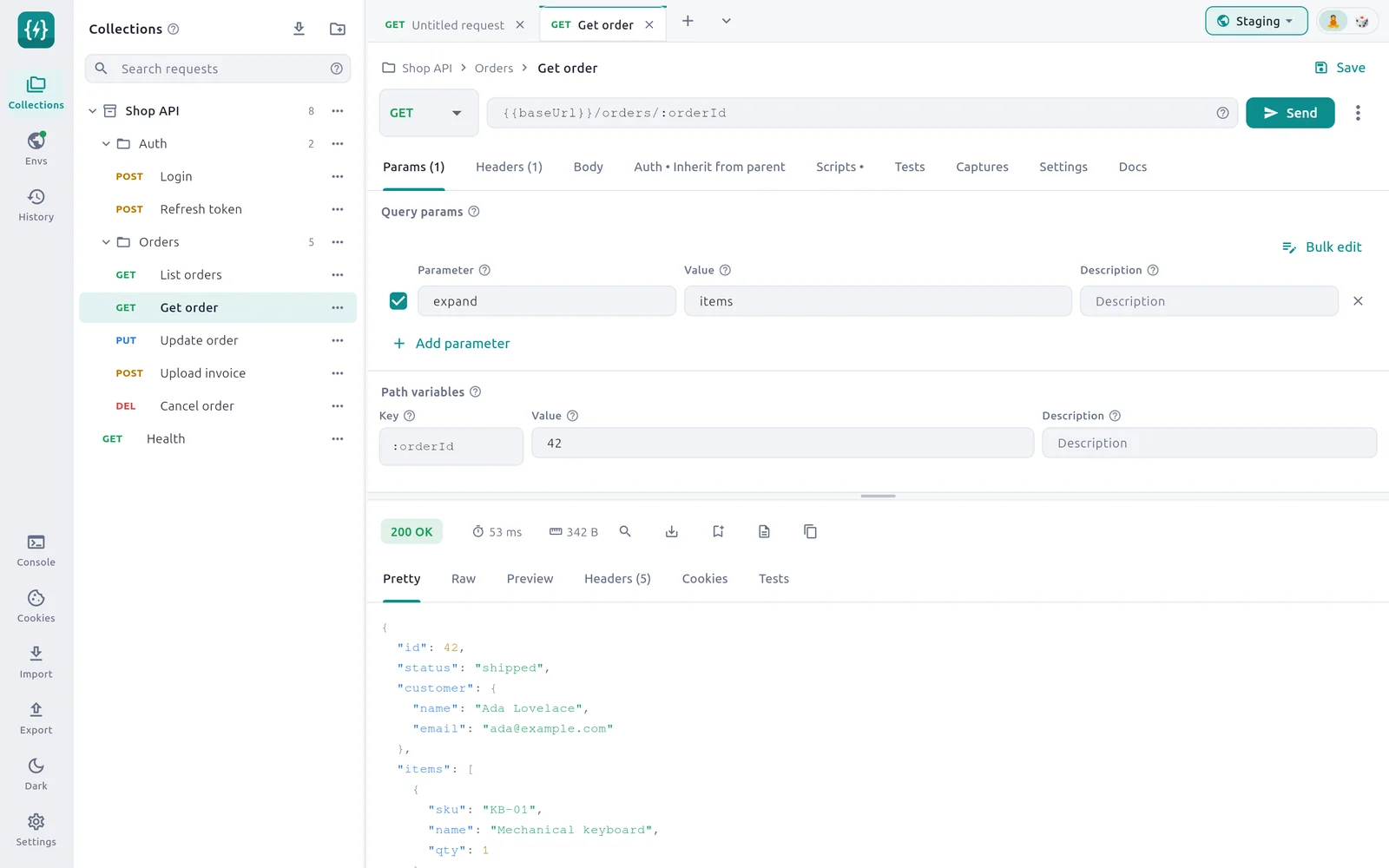
- 1Search requests — Filters by name, URL or folder.
- 2Import — Brings in a Postman, OpenAPI, HAR or workspace file.
- 3Create a collection — Adds a new, empty collection.
- 4Collection — Click to open or close it. The number is how many requests it holds.
- 5Menu — Run, load test, import, settings, export, docs, history, variables, rename, delete.
- 6Folder — Groups requests inside a collection.
- 7Request — Click to open it in a tab. The open request is highlighted.
Create a collection
Select Collections on the rail.
Select the folder-plus icon, Create a collection, at the top of the panel. With no collections yet, select New collection in the middle of the panel.
Type a name and select OK.
You can also create a collection while saving a request: in the save dialog, type a name in Or create a new collection. See Save a request.
To bring in an existing collection, see Import from Postman and Import OpenAPI and HAR.
Work in the tree
| To | Do this |
|---|---|
| Open or close a collection or folder | Click its row |
| Open a request | Click it. It opens in a request tab, or switches to its tab if it is already open. |
| Find a request | Type in Search requests. It matches the name, the URL and the folder, and opens matching folders. |
| See a request's saved examples | Click the number at the end of its row |
| Act on a row | Open its … menu |
Each request shows its method. DELETE is shortened to DEL. WebSocket, Socket.IO, MQTT, Server-Sent Events and gRPC requests show WS, SIO, MQTT, SSE and gRPC instead.
The number on a collection or folder row counts the requests inside, including subfolders.
Collection menu
| Item | What it does |
|---|---|
| Run collection | Sends every request in order and checks their tests. See Collection runner. |
| Load test collection | Simulates many users running these requests at once. See Load testing. |
| Import into collection | Adds requests from a file to this collection instead of creating a new one |
| Auth, scripts and docs | Opens the collection settings |
| Export… | Saves the collection as a Postman, OpenAPI or ApiWorkbench file. See Export. |
| Generate docs… | Makes one HTML or Markdown page documenting every request. See Collection docs. |
| Version history | Shows earlier versions to compare or restore |
| Variables | Opens the collection variables |
| Rename | Gives the collection a new name. Its requests stay as they are. |
| Delete | Removes the collection and all its requests, after you confirm |
Folder menu
| Item | What it does |
|---|---|
| Run folder | Sends every request in this folder and its subfolders in order |
| Load test folder | Load tests this folder's requests |
| Import into folder | Adds imported requests inside this folder |
| Auth, scripts and docs | Opens the folder settings |
Request menu
| Item | What it does |
|---|---|
| Duplicate | Makes a copy right below, named with (copy) at the end |
| Load test | Load tests this one request |
| Delete | Removes the request from the collection right away, without asking |
To rename a request, open it and click its name above the URL. See Rename a request.
Folders
Folders group the requests of a collection, and can be nested.
Folders arrive with imports. A Postman collection keeps its folders, and an OpenAPI import makes a folder per tag. Version 1.4.0 has no command to create an empty folder, or to rename, move or delete one.
What you can do with a folder:
- Add to it. Import into folder places imported requests inside it. Duplicate on a request in the folder makes the copy in the same folder.
- Keep requests in it. A request opened from a folder stays there when you save it.
- Run it. Run folder and Load test folder work on the folder and its subfolders.
- Give it shared settings. See below.
A folder is shown as long as it holds at least one request. When its last request is deleted, the folder disappears from the tree.
A request you save from a new tab goes to the top level of the collection.
Collection and folder settings
A collection and each folder can carry auth, scripts and a description that apply to everything inside.
Open the … menu on the collection or folder.
Select Auth, scripts and docs.
Change the tabs you need, then select Done.
| Tab | What it holds |
|---|---|
| Auth | The auth that requests set to Inherit from parent will use |
| Scripts | A Pre-request script and a Post-response script that run around every request inside |
| Docs | A Description, shown at the top of this collection or folder in the exported documentation |
| Variables | Collection only: the collection's variables |
Auth
Choose an Auth type and fill in its fields, exactly as on a request. A folder starts as Inherit from parent, which passes the question to the folder above or to the collection. A collection has no parent, so it does not offer that choice.
Requests use this auth only when their own Auth type is Inherit from parent. See Inherit auth from a folder or collection.
Scripts
- The Pre-request script runs before each request inside is sent, ahead of the request's own pre-request script.
- The Post-response script runs after each response, once the request's own tests have run.
Use them for work every request needs, such as setting a timestamp variable or checking that no response is a 500. See Scripts.
Docs
Write what the collection or folder is for and how to use it. The text is kept in workspace exports and appears in generated docs.
Version history
ApiWorkbench keeps earlier versions of each collection on your device. Use them to see what changed or to go back.
How snapshots are taken
- A snapshot is taken automatically when the collection changes and is saved: a request saved, deleted or duplicated, a setting or variable changed, an import.
- At most one snapshot is taken per minute for a collection. Changes that follow quickly are folded into the next one.
- The latest 50 snapshots of each collection are kept. Older ones are dropped.
Compare a version with now
Open the … menu on the collection and select Version history.
The dialog lists snapshots with the time and a short summary of what changed. The one that matches the collection right now is marked current.
Select a snapshot.
You see Changes since that time, in groups:
| Group | Meaning |
|---|---|
| Collection | Changes to the collection itself: name, description, auth, scripts, variables, request order |
| Added since | Requests that are not in the snapshot. Restoring removes them. |
| Removed since | Requests the snapshot has that are gone now. Restoring brings them back. |
| Changed since | Requests that differ, with the fields that changed: method, URL, headers, body and so on |
Select All snapshots to go back to the list.
Restore a version
Select the snapshot, then Restore this version. Or select the restore icon on its row in the list.
Confirm with Restore.
The collection goes back to how it was at that time. Your current version is saved as a snapshot first, so you can return to it from the same list.
WARNING
Restoring replaces the whole collection, not one request. Requests added after the snapshot are removed. They stay in the snapshot taken right before the restore.
Request tabs that are already open keep their working copies, and saving one would write it over the restored version. Close the tabs of that collection's requests, then open the requests again from the tree.
Limits
- History is local. It is not included in exports and does not travel to another computer.
- Deleting a collection removes it from the tree. Export a collection first if you may want it again.
- Environments and Globals have no version history.
Delete a collection
Open the … menu on the collection, select Delete, and confirm. The dialog says how many saved requests go with it.
DANGER
Deleting a collection removes all its requests. There is no undo in the app. Export it first if you are not sure.
Share and back up
Collections live in the app's data folder on your device. See Files and data. To back up, or to move collections to another computer, use Export and import the file there.