
Import OpenAPI or Swagger
An OpenAPI document (also known by its older name, Swagger) describes an API: its paths, methods and responses. Mock Studio can read one and create a project with an endpoint for every operation, so you have a working mock of the API before any of it is built.
Import a file
Select Import in the rail, then From OpenAPI / Swagger.
Pick the file. Mock Studio accepts
.json,.yamland.yml.
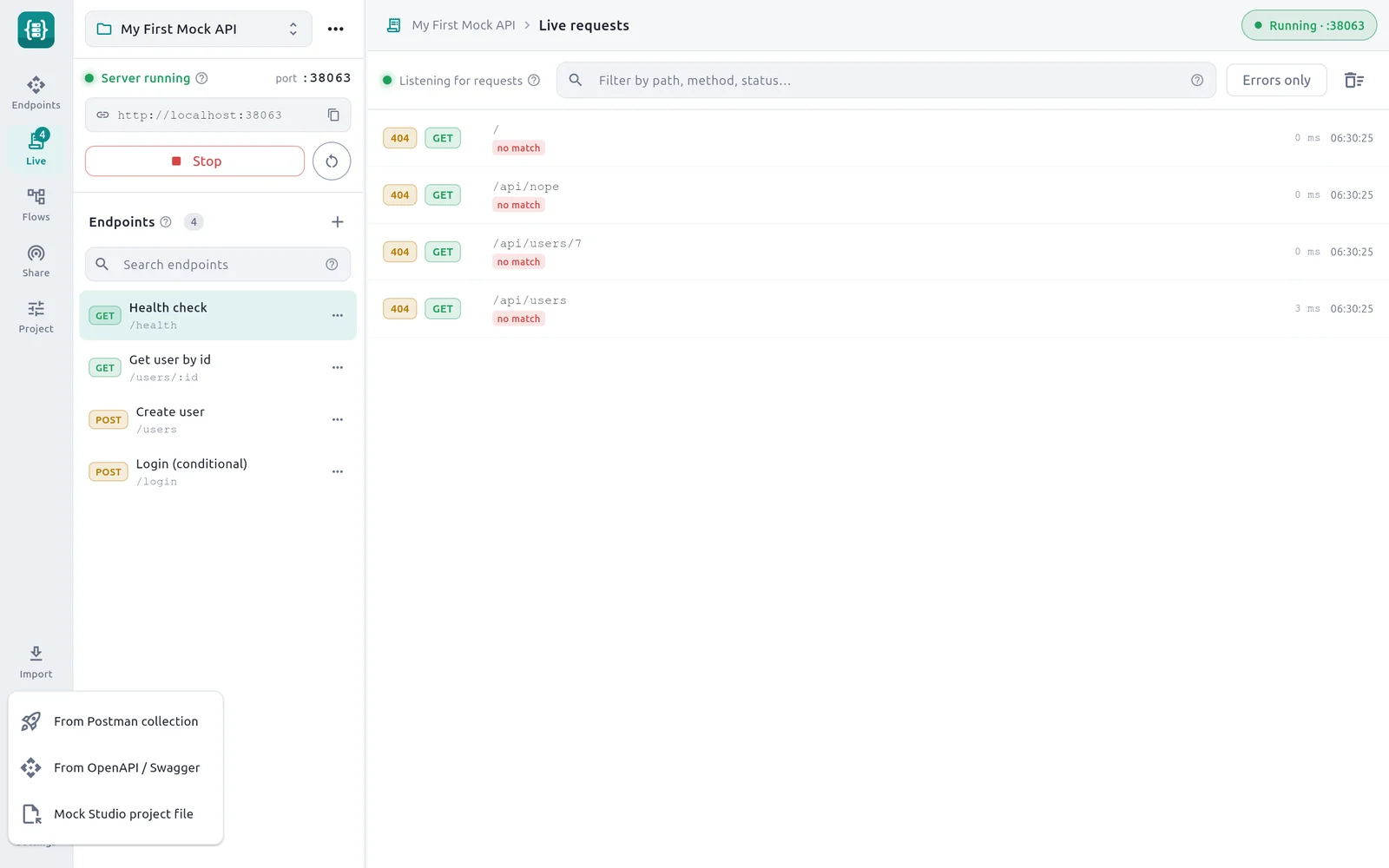
- 1Import — Opens the import menu.
- 2From Postman collection — Creates endpoints from a Postman collection.
- 3From OpenAPI / Swagger — Creates a project from an OpenAPI or Swagger file.
- 4Mock Studio project file — Loads a project exported from Mock Studio.
Mock Studio creates a new project called Imported API on the next free port, selects it, and confirms with a message such as Imported 12 endpoints from OpenAPI spec. The import always makes a new project; it does not add to an existing one.
Rename the project from the ⋯ menu beside the project switcher, then select Start server.
How the document is converted
Operations become endpoints
Each method under each path in the document's paths section becomes one endpoint.
| In the document | In Mock Studio |
|---|---|
Path, such as /users/{id} | Path with the parameter rewritten: /users/:id |
get, post, put, patch, delete, head, options | Method |
summary | Endpoint name. Without one, the operationId is used, then the method and path. |
description | Description / notes |
Paths are used as written. A base path or server URL in the document, such as /api/v1, is not added in front of them.
Responses
Each entry under an operation's responses becomes one response on the endpoint.
| In the document | In the response |
|---|---|
Status code, such as 200 or 404 | Status, and a label such as 200 OK or 404 Not Found |
A code that is not a number, such as default | Status 200 |
| No responses at all | One response, 200 OK, with the body {} |
Every imported body is JSON. The body is filled in from the first of these that the document has, under the response's application/json content:
- The
example. - The first entry in
examples. - A sample built from the
schema. - If none of those exist,
{"message": "…"}holding the response's description.
Samples built from a schema
When a response has a schema but no example, Mock Studio builds a body with one placeholder value for each property.
| Schema type | Sample value |
|---|---|
string | "string" |
string with format date-time | "2024-01-01T00:00:00Z" |
string with format email | "user@example.com" |
string with format uuid | "00000000-0000-4000-8000-000000000000" |
integer, number | 0 |
boolean | true |
array | A list with one sample item |
object | An object with a sample for each property |
A property with its own example uses that. References to other parts of the same document ($ref: '#/components/schemas/User') are followed, up to six levels deep.
For this schema:
type: object
properties:
  id: { type: string, format: uuid }
  email: { type: string, format: email }
  age: { type: integer }
  tags:
    type: array
    items: { type: string }
the imported body is:
{
  "id": "00000000-0000-4000-8000-000000000000",
  "email": "user@example.com",
  "age": 0,
  "tags": [
    "string"
  ]
}
Which response is sent
Within each endpoint, the first success response (a 2xx status) is moved to the top.
- An endpoint with one response uses Single response.
- An endpoint with several uses Conditional rules, with no conditions set. Until you add conditions, the top response, the success, is the one sent.
So straight after an import, every endpoint answers with its success response, and the error responses sit ready underneath.
Make the mock useful
The import gives you the shape of the API. A few edits make it behave like one.
Reach the error responses. On an error response, select Add condition. For example, on
404 Not Foundadd Path paramidequals0, so that/users/0returns the404. See Conditional rules.Replace sample values. Change
"string"and0to realistic values, or to tokens:"id": "{{params.id}}","name": "{{faker.name}}","createdAt": "{{now}}". See Dynamic templating.Add auth where the API needs it. Security settings in the document are not imported. Turn on Require an auth header under Advanced settings on the endpoints that need it. See Auth, CORS and project settings.
Group the endpoints. Tags in the document are not turned into folders. Use Move to folder… to organise a long list. See Endpoints and paths.
Limits
- Only bodies described under
application/jsonare read. A response that offers only another type, such as XML, gets the description-message body. - Documents in the older Swagger 2.0 layout, where a response has
schemadirectly and nocontentsection, import their paths, methods and status codes, but the bodies fall back to the description message. - Schemas that combine others with
allOf,oneOforanyOfare not expanded. - References to other files are not followed.
- Request bodies, parameters and security schemes are not used.
If the import fails
| Message | Cause |
|---|---|
No "paths" section found — is this an OpenAPI file? | The file is not an OpenAPI document, or has no paths. |
No operations found in the document. | The paths have no methods under them. |
Could not import: followed by a parser message | The file is not valid JSON or YAML. |
To import a Postman collection instead, see Import from Postman. For using an OpenAPI file in an API client, see Import OpenAPI and HAR.