
Beginner guide: free up space safely
By the end of this page you will have given SpaceSweep the access it needs, seen what is filling your phone, and cleared your first batch of junk files, knowing exactly what was deleted.
Before you start
- SpaceSweep installed. See Install.
- Five minutes. Scans of a full phone can take a minute or two.
WARNING
Everything SpaceSweep deletes is deleted permanently. There is no undo and no recycle bin. If a file matters to you and you have no other copy, back it up first.
Find your way around
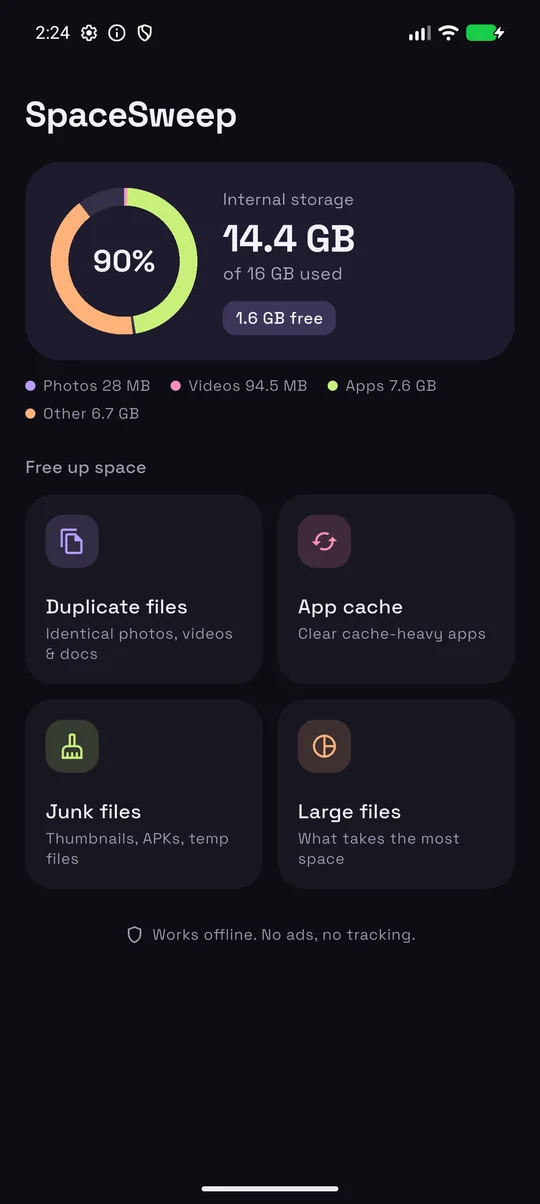
- 1Storage ring — How full your internal storage is, as a percentage.
- 2Free — How much space is left.
- 3Breakdown — Photos, videos, apps and other. Appears once usage access is allowed.
- 4Duplicate files — Identical copies of the same file.
- 5App cache — Apps ranked by how much cache they keep.
- 6Junk files — Thumbnails, installers, temp files and empty folders.
- 7Large files — The biggest files on your phone.
Allow file access
Open SpaceSweep. A card on the home screen reads Allow file access. Tap Allow.
On Android 11 or later, Android opens its All files access page. Turn on the switch for SpaceSweep, then press Back.
On Android 8 to 10, tap Allow in the pop-up.
Optional: tap See what's using space under the ring, find SpaceSweep in the Usage access list and turn it on. Back in the app, the ring now splits used space into photos, videos, apps and other.
Why these are needed, and what SpaceSweep never touches, is explained in Permissions.
Clear junk files
Junk files are the safest place to start: they are files your phone does not need, such as image previews that gallery apps rebuild on their own.
Tap Junk files. SpaceSweep shows Looking for junk… while it scans.
The results are grouped into categories, each with a tick box. The safe categories are already ticked.
Tap a category to open it and see every item in it. Untick anything you want to keep.
Check the bar at the bottom: it shows how many items are selected and how much space that frees.
Tap Delete. A dialog repeats the count and the space, and warns that deleted files cannot be recovered. Tap Delete to confirm.
SpaceSweep reports what it deleted. If anything was skipped, tap Details to see why.
If SpaceSweep finds nothing, it says All clean.
What you learned
- SpaceSweep needs all-files access to look for files, and usage access to show cache sizes.
- Nothing is deleted until you tap Delete and confirm, and you can always see the list first.
- Deleted files are gone for good.