
Beginner guide: your first connection
By the end of this page you will have saved a server in SecureShell Go, checked that it is the server you meant, run a command on it and disconnected cleanly.
What SSH is
SSH (Secure Shell) is a way to sign in to another computer over a network and type commands on it, as if you were sitting at its keyboard. Everything is encrypted, so people on the same Wi-Fi cannot read your password or your commands.
The computer you connect to is the server or host. It runs an SSH server program, usually OpenSSH, that listens on port 22. You sign in with a username and either a password or a key, a pair of files that proves who you are without sending a password. The server also proves who it is, with its own host key. SecureShell Go checks that host key every time, so you never type your password into an impostor.
What you need
- SecureShell Go installed. See Install.
- A server with SSH turned on, and its address: a name such as
server.example.comor an IP address such as192.168.1.10. - A username and password for that server. To use a key instead, see Use SSH keys after this guide.
- If you can, the server's host-key fingerprint, from whoever runs the server. Step 6 explains why.
Save your first server
Open SecureShell Go. The first time, the list says No saved hosts yet.
Tap the + button at the bottom right. The Add host form opens.
Fill in the connection details:
- Label (optional): a name you will recognise, such as
Home server. - Host: the server's name or IP address.
- Port: leave
22unless the server uses another port. - Username: your account on the server.
- Label (optional): a name you will recognise, such as
Under the sign-in choice, keep Password selected and type your password in Password.
It is saved encrypted by your device's secure storage, not in plain text.
Tap Save & connect.
The Unknown host dialog appears. It shows the server's Key type and its SHA256 fingerprint, a short code that identifies the server's host key.
Compare that fingerprint with one from a source you trust: the server's owner, your hosting provider's console, or a command run on the server's own screen. If they match, tap Accept & save. If they do not, or you have no way to check, tap Reject. Verify host keys explains how to get the fingerprint.
The terminal opens and shows the server's prompt.
TIP
To try a server once without saving it, type user@host or user@host:port in the Quick connect bar at the top of the host list and tap the arrow. You can save it afterwards with Save this server.
Find your way around the terminal
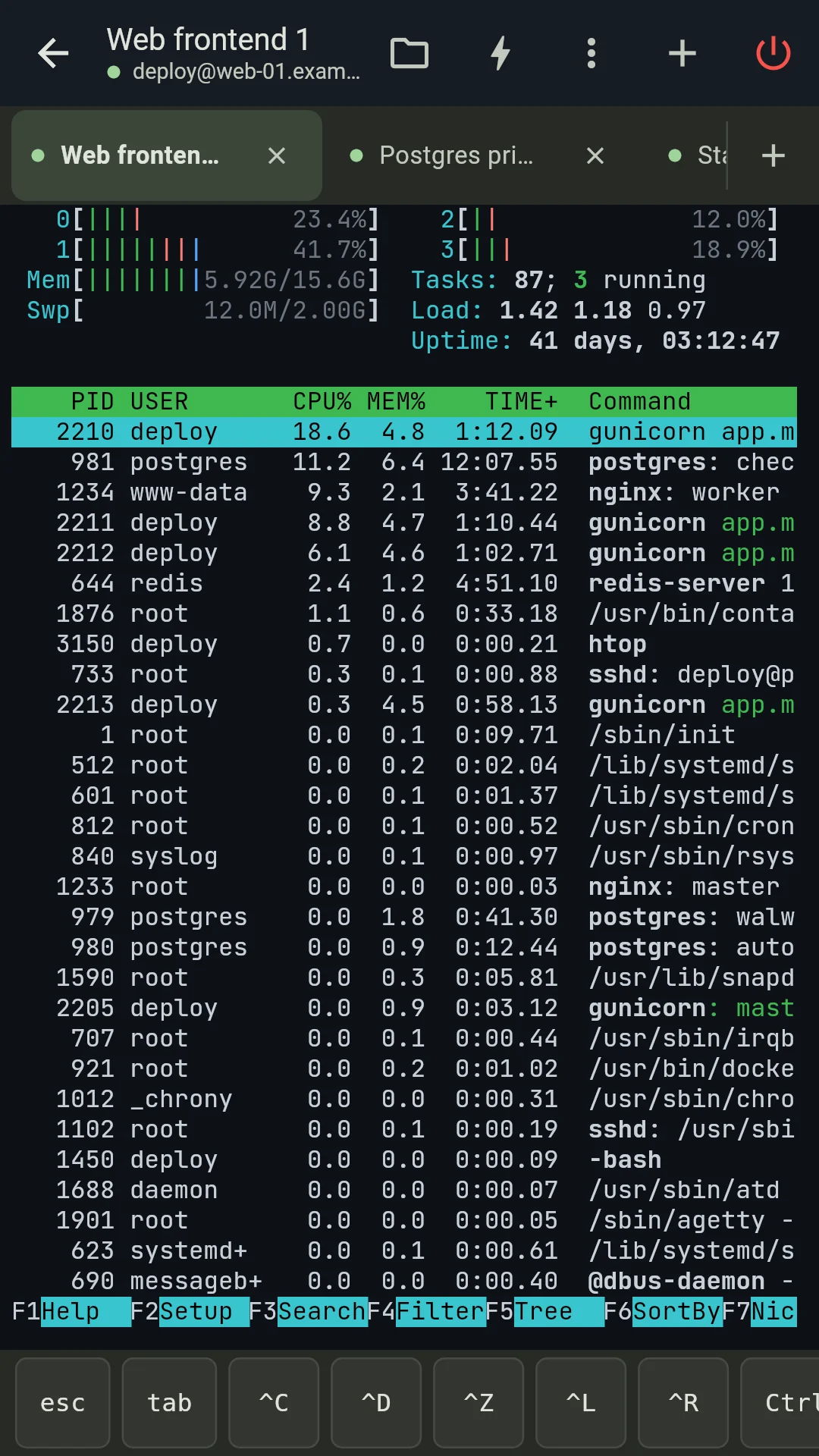
- 1Browse files — Switches to the file browser for this server. The terminal keeps running.
- 2Snippets — Saved commands you can send with one tap.
- 3More — Find in terminal, session log, server stats, remote desktop.
- 4New session — Opens another session on any saved host.
- 5Disconnect — Closes this session. It asks first.
- 6Session tabs — One tab per open session. A green dot means connected.
- 7Extra keys row — Esc, Tab, Ctrl and control keys that a phone keyboard lacks.
Run a command
Tap the terminal to bring up the keyboard.
Type
uptimeand press Enter. The server answers with how long it has been running and how busy it is.Try
lsto list the files in your home folder.To stop a command that keeps running, tap ^C in the extra-keys row. It sends Ctrl + C.
A few things that help on a phone:
- Pinch to make the text larger or smaller.
- Long-press to select text and copy it. A paste of several lines shows you the lines and asks before running them.
- Ctrl on the extra-keys row is sticky: tap it, then a letter, to send Ctrl plus that letter.
Disconnect
Type exit, or tap the red Disconnect button and confirm. You return to the host list, where your server now shows Last connected today at and the time. Next time, tap it to connect in one step.
If you leave the app with a session open, Android keeps it connected in the background with a quiet notification.
What you learned
- SSH signs you in to a remote computer over an encrypted connection.
- A saved host keeps the address, username and an encrypted password, so you connect with one tap.
- The server's fingerprint proves which machine you reached. Check it the first time.