
Settings and shortcuts
Every setting in SecureShell Go, with its default, and the keyboard shortcuts for computers and tablets with a keyboard. Open Settings with the gear button on the host list.
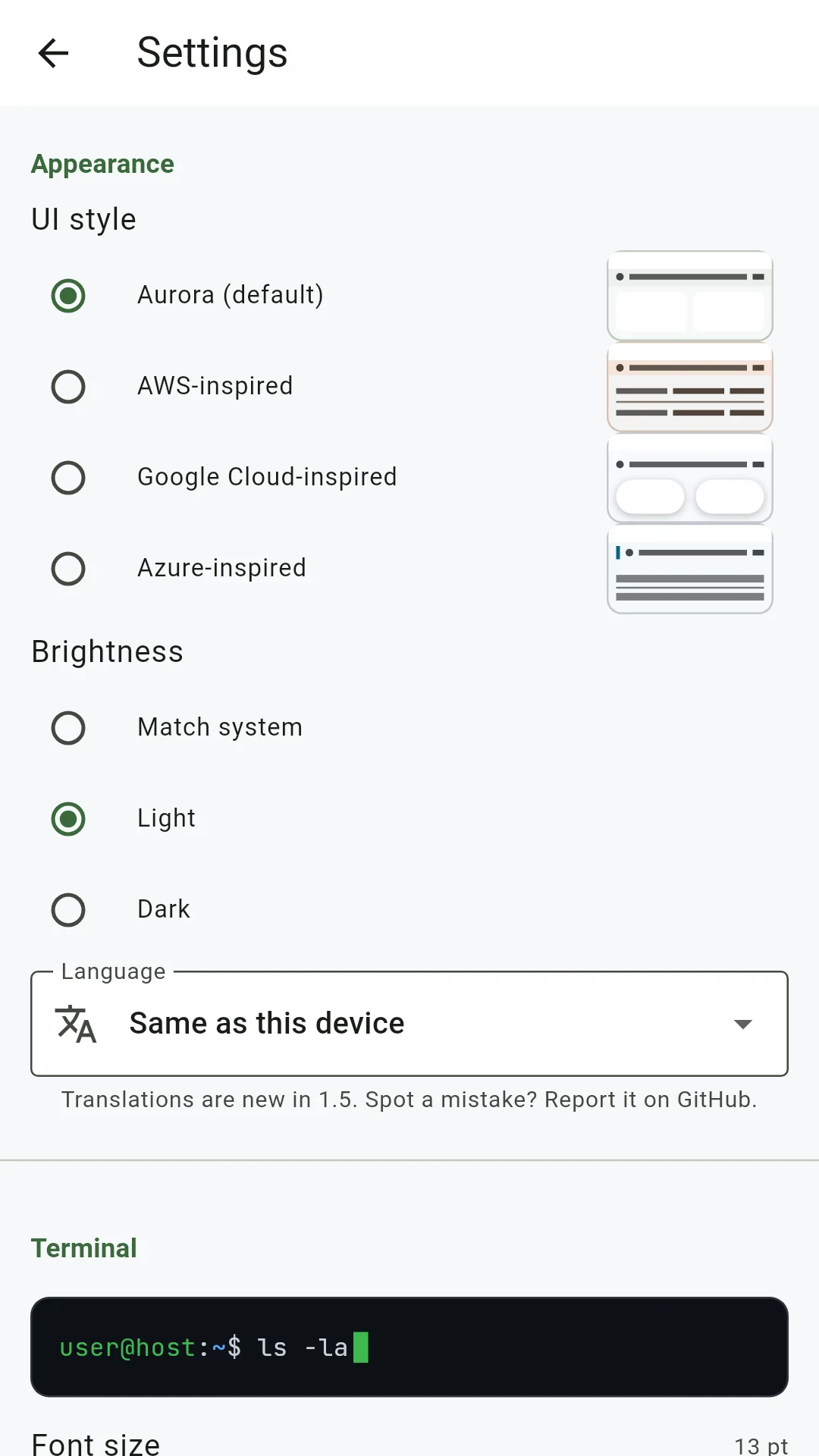
Appearance
| Setting | Choices | Default |
|---|---|---|
| UI style | Aurora (default), AWS-inspired, Google Cloud-inspired, Azure-inspired | Aurora |
| Brightness | Match system, Light, Dark | Dark |
| Language | Same as this device, or one of the nine languages | Same as this device |
On a computer, each UI style also lays out the host list its own way. Phones keep the simple list and take only the colours.
Terminal
| Setting | Choices | Default |
|---|---|---|
| Font size | 10 to 24 pt | 13 pt |
| Colour scheme | SecureShell Go (default), Dracula, Solarized Dark, Solarized Light, Nord, Gruvbox Dark, Monokai, One Dark, Black on white, Retro green | SecureShell Go |
| Font | System font, JetBrains Mono | System font |
| Cursor | Block, Underline, Bar | Block |
| Blinking cursor | On or off | Off |
| Copy on select | Text you select with the mouse goes straight to the clipboard | Off |
| Bell | Vibrate, Flash the screen, Off | Vibrate |
| Scrollback | 1,000, 5,000, 10,000 or 50,000 lines | 10,000 lines |
A preview at the top of the section shows your choices. Pinching the terminal also changes the font size, and the size is kept. JetBrains Mono is bundled with the app, so box-drawing characters look right on every device. Scrollback applies from the next session you open; more lines use more memory per session.
Editor and keyboard
| Setting | Choices | Default |
|---|---|---|
| Text size (Editor) | 8 to 32 pt | 13 pt |
| Extra keys row | Automatic, Always, Never | Automatic |
Automatic shows Esc, Tab, Ctrl and the arrows over the on-screen keyboard, and hides them while a hardware keyboard is in use. With Never, Ctrl and Esc need a hardware keyboard.
Session, commands and networking
| Setting | What it does | Default |
|---|---|---|
| Keep screen awake | Stops the screen sleeping while a session is open. | Off |
| Show hidden files by default | Shows dot-files the next time you open the file browser. | Off |
| Snippets | Saved commands you can send to any session. | |
| Tunnels | Port forwards. See Forward ports with tunnels. |
Security
| Setting | What it does | Default |
|---|---|---|
| App lock | Asks for your device's unlock method (Android) or Windows Hello before showing the app. Not available on Linux. | Off |
| Lock when away for | Immediately, or after 1, 5 or 15 minutes. | After 1 minute |
| Known hosts | Review and forget trusted host keys. See Verify host keys. | |
| Backup | Export or restore an encrypted copy of your setup. |
Sessions and tunnels keep running while the app is locked. Saved passwords are always encrypted by your system's secure storage, with or without app lock.
A Backup file holds your hosts, groups, settings, snippets, tunnels and bookmarks, protected by a passphrase you choose. Saved passwords and trusted host keys are included only if you ask. Keep the passphrase safe: without it the backup cannot be opened.
Diagnostics
Keep a diagnostics log records errors and crashes on this device, with passwords and keys removed, so you can paste them into a bug report. Nothing is sent anywhere. Copy diagnostics, View diagnostics and Clear diagnostics manage it, and turning the setting off deletes the log.
Keyboard shortcuts
On a Mac, use ⌘ in place of Ctrl for the Ctrl + Shift shortcuts.
| Shortcut | Action |
|---|---|
| Ctrl + K | Command palette: hosts, snippets and actions |
| Ctrl + Shift + C | Copy |
| Ctrl + Shift + V | Paste |
| Ctrl + Shift + F | Find in terminal |
| Ctrl + = / Ctrl + − / Ctrl + 0 | Larger, smaller, reset terminal text |
| Ctrl + Shift + T | New session |
| Ctrl + Shift + W | Close the session in front (asks first) |
| Ctrl + Tab / Ctrl + Shift + Tab | Next or previous session |
| Ctrl + Shift + E | Switch between terminal and files |
| Ctrl + Shift + Enter | Full-width terminal |
| Ctrl + Shift + N / P | Next or previous pane of a split |
| Ctrl + L | Go to path, in the file browser |
| Ctrl + S | Save, in the host form |
Ordinary Ctrl + letter keys go to the shell: Ctrl + C stops the running command. On Linux a middle click pastes. Ctrl + click opens a web address shown in the terminal.