
Beginner guide: your first ten minutes
By the end of this page you will have added the Markdrop Clipper extension to your browser, turned a web page into Markdown, and saved it as a .md file. The extension is the quickest way to try Markdrop: it needs no server and works inside your browser.
What you need
- Chrome, Edge, Brave, or Firefox 140 or newer.
- The file
markdrop-clipper-chrome-0.1.1.zip(or the Firefox one) from the latest release.
Add the extension to Chrome
Unzip
markdrop-clipper-chrome-0.1.1.zipinto a folder you will keep, for example~/markdrop-clipper.The browser loads the extension from this folder each time it starts, so do not delete it.
Open
chrome://extensionsin the address bar.Turn on Developer mode at the top right.
Select Load unpacked and choose the folder you unzipped.
Markdrop Clipper appears in the list.
Select the puzzle-piece icon in the toolbar and pin Markdrop Clipper, so its icon stays visible.
Using Firefox? See Browser extension.
Find your way around
Open any article, such as a Wikipedia page, and select the Markdrop Clipper icon. The popup opens.
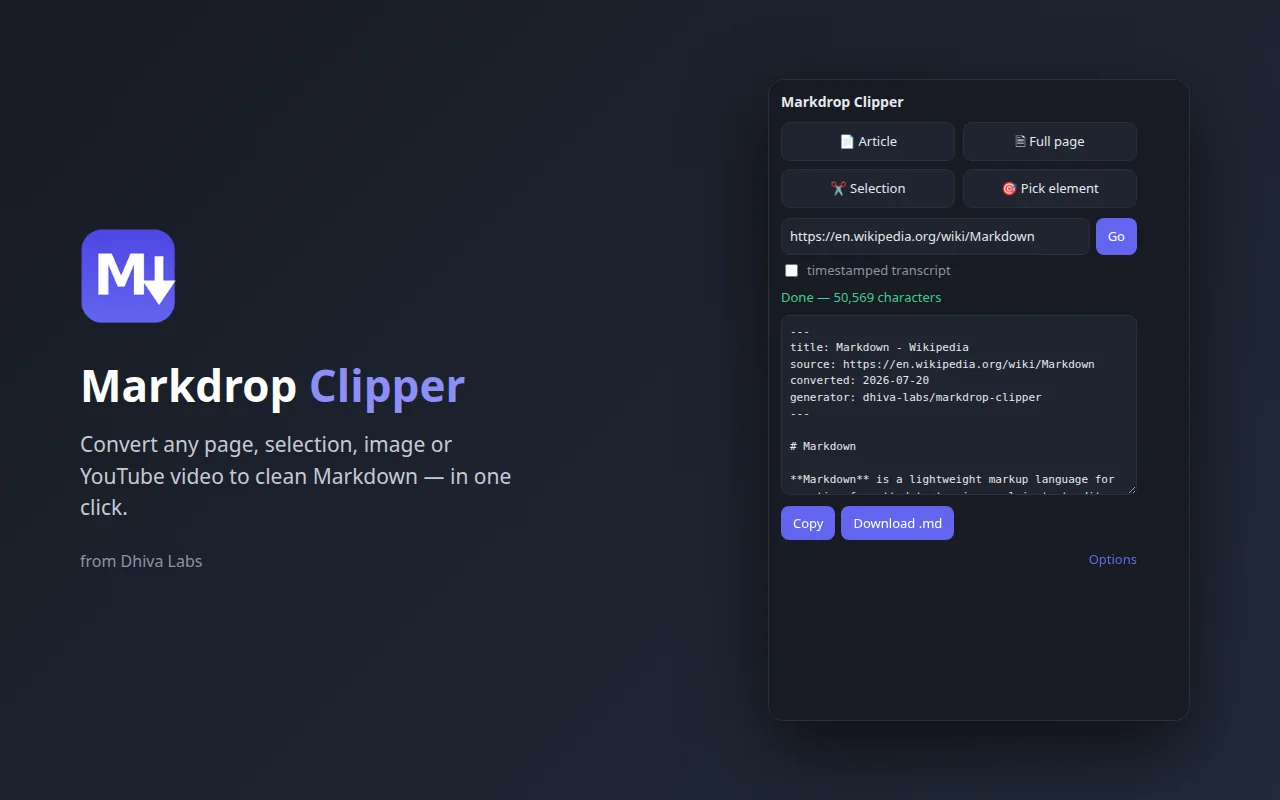
- 1Article and Full page — Convert the main article only, or the whole page.
- 2Selection and Pick element — Convert the text you selected, or click blocks on the page to choose them.
- 3YouTube box — Paste a YouTube link and select Go to get its transcript.
- 4timestamped transcript — Adds the time of each line to a YouTube transcript.
- 5Status — Shows progress, then the length of the result.
- 6Result — The Markdown, starting with its front-matter.
- 7Copy and Download .md — Copy the Markdown, or save it as a file.
- 8Options — Settings for front-matter, images and the Conversion API.
Convert your first page
On an article page, open the popup and select Article.
The status line reads Converting…, then Done with the number of characters. The Markdown appears in the box.
Look at the top of the result. The lines between
---marks are the front-matter: the pagetitle, itssourceaddress, theconverteddate and thegenerator.Select Copy to put the Markdown on the clipboard. The status reads Copied to clipboard.
Or select Download .md to save it as a file in your downloads folder.
Article uses a reader-mode cleaner that keeps the main text and drops menus, adverts and sidebars. If something you wanted is missing, try Full page instead.
Try the shortcuts
- Right-click a page and choose Convert page to Markdown, or select some text first and choose Convert selection to Markdown.
- Press Alt + Shift + M to convert the current page in article mode straight to a download.
What you learned
- Markdrop Clipper turns a page into Markdown inside your browser.
- Article keeps the main text; Full page keeps everything.
- Each result starts with front-matter that says where it came from.
Next steps
- Browser extension: picking elements, YouTube transcripts and options
- Desktop app: convert PDFs and Office files
- Troubleshooting and FAQ