
Beginner guide: your first ten minutes
By the end of this page you will have set up SignVox, found your way around its main screen, and fingerspelled a word that the phone speaks out loud.
What you need
- SignVox installed, with camera access allowed. See Install.
- Good light on your hand, and a plain background if you can.
- Some knowledge of the American Sign Language (ASL) fingerspelling alphabet.
Set up
Open SignVox. The first screen reads Sign, and SignVox speaks for you. Select Continue.
The next screen, The camera reads your hands, explains why SignVox needs the camera. Select Continue and allow camera access.
The last screen gives a tip: Hold the phone at chest height. Select Get started.
The Translate tab opens, with the front camera filling the screen.
Prop the phone up or hold it at chest height with your other hand, so your signing hand is clearly in the picture.
Find your way around
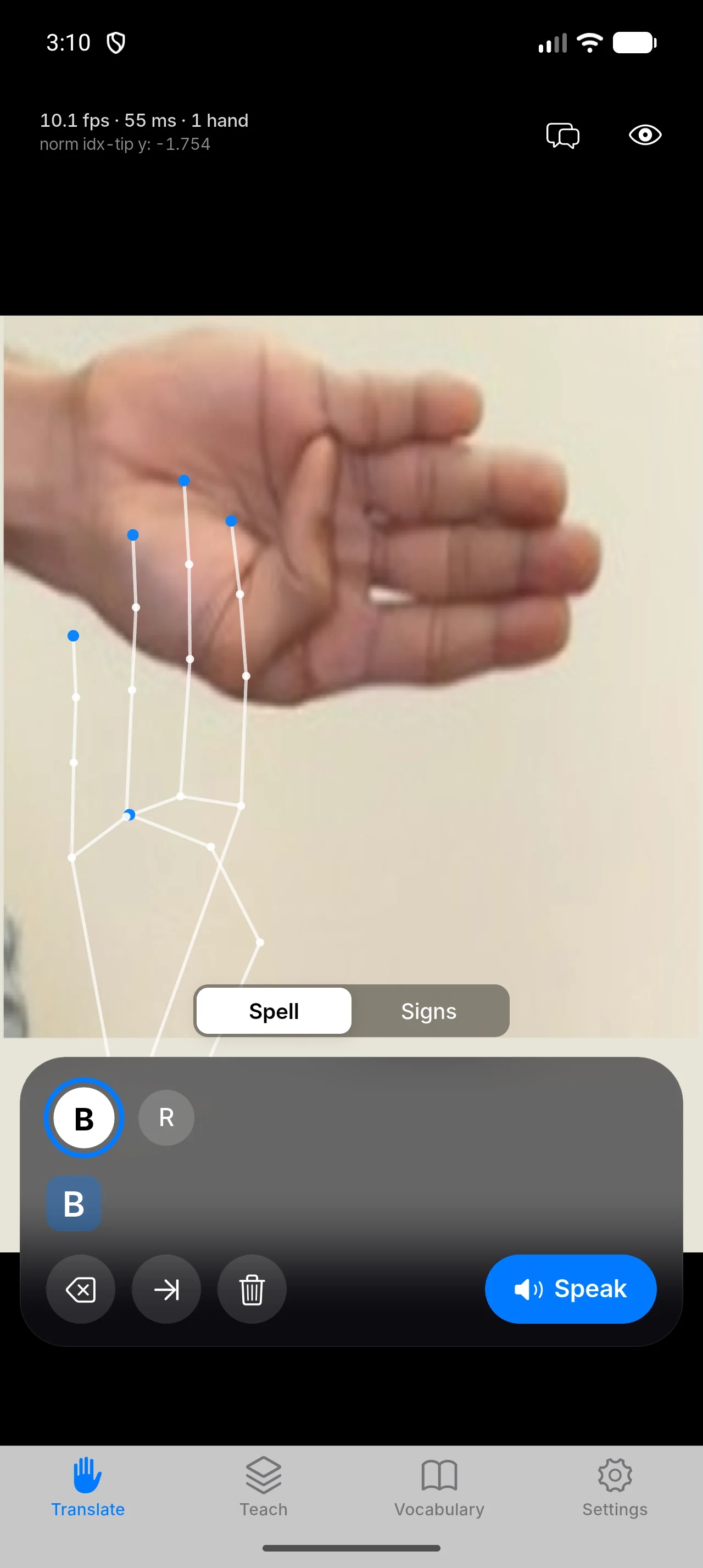
- 1Conversation mode — Opens the split screen with captions of what the other person says.
- 2Skeleton overlay — Shows or hides the lines SignVox draws over your hand.
- 3Mode switch — Chooses the mode. In version 1.1.0 it reads ABC, 123 and Signs.
- 4Candidate bar — The top guesses for your handshape. The ring fills as a letter is about to be accepted.
- 5Sentence — The letters and words accepted so far.
- 6Backspace, Add space, Clear — Remove the last letter, end the word, or clear the sentence.
- 7Speak — Speaks the whole sentence out loud.
- 8Tabs — Translate, Teach, Vocabulary and Settings.
This picture comes from an earlier version, where the mode switch read Spell and Signs. Version 1.1.0 has three choices: ABC, 123 and Signs.
Spell your first word
On the Translate tab, check that ABC is selected.
Before your hand is in view, the bar reads Show your hand to the camera.
Hold up your signing hand. White lines and dots appear on it: SignVox is tracking your hand.
Make the handshape for the first letter, for example H for "HI", and hold it still.
The candidate bar shows the top guesses. A ring fills around the leading letter, and when it closes the letter is added to the sentence. The phone gives a small vibration.
Change to the next handshape, I, and hold it.
Lower your hand or pause. After the pause, SignVox finishes the word and speaks it.
If a wrong letter is added, tap Backspace. To repeat a letter, as in "HELLO", relax your hand a little between the two L's, then hold the shape again.
Use suggestions
After a letter or two, suggestion chips appear with whole words. Tap one to use it without spelling the rest. With Auto-Correct Words on (the default), a word that is one letter away from a common English word is fixed before it is spoken.
Speak a whole sentence
By default SignVox speaks each word as soon as you finish it. To speak only when you are ready, turn off Speak as You Sign in Settings, then tap Speak to read out the whole sentence. Clear starts a new sentence.
What you learned
- SignVox tracks your hand with the front camera and turns held handshapes into letters.
- A pause finishes a word, and SignVox speaks it.
- Backspace, Add space, Clear and Speak control the sentence.