
Make reminders reliable
A reminder app is only useful if its reminders arrive. This page covers what DoseDrop needs on Android and on Linux, and how to pause reminders on purpose.
On Android
DoseDrop schedules each reminder with Android's alarm system, so reminders fire even when the app is closed, and are scheduled again after the phone restarts.
Allow notifications
On Android 13 and later, DoseDrop asks for permission to send notifications the first time it opens. If you tapped Don't allow, turn it on again:
Open Android Settings > Apps > DoseDrop > Notifications.
Turn on notifications for DoseDrop.
Make sure the Medication reminders and Water reminders categories are on too.
Menu names vary a little between phone makers.
Allow alarms and reminders
DoseDrop uses exact alarms, which ring at the minute you set rather than whenever Android finds it convenient. If your phone shows an Alarms & reminders permission for DoseDrop, keep it allowed.
Check battery settings
Some phones, especially those with aggressive battery savers, stop apps running in the background and can delay or block reminders. DoseDrop does not ask to be excluded from battery optimisation, and its behaviour under these battery savers has not yet been tested on real phones.
If reminders arrive late or not at all:
Open Android Settings > Apps > DoseDrop > Battery.
Choose Unrestricted (on some phones, Don't optimise or No restrictions).
Open DoseDrop once so it schedules the next two days again.
Open the app every couple of days
DoseDrop schedules reminders about 48 hours ahead. It renews that schedule every time you open the app or answer a reminder from the notification. If you go more than two days without doing either, reminders can stop until you open it again.
On Linux
On Linux, reminders come from DoseDrop itself, so DoseDrop must be running.
- Closing the window does not quit DoseDrop. It keeps running in the system tray and reminders keep firing.
- The tray menu has Open DoseDrop, Pause 1 hour and Quit.
- Quit stops all reminders until you start DoseDrop again.
- To start DoseDrop automatically, turn on Start DoseDrop at login in Settings > Desktop.
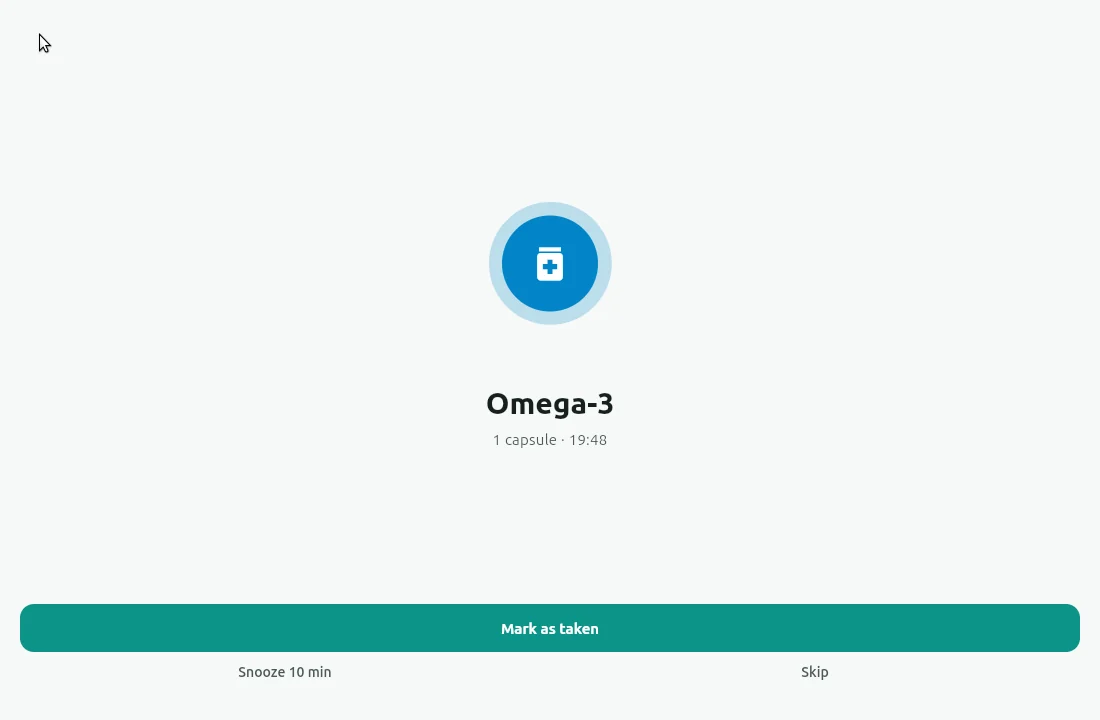
When a reminder is due, DoseDrop shows a full-screen alarm and, if Alarm sound is on, plays a sound until you answer.
WARNING
If your desktop has no system tray (for example GNOME without the AppIndicator extension), a closed window cannot be brought back. Keep the window open there, or reminders stop when you quit.
Pause all reminders for an hour
Open Settings and, under Reminders, tap Pause 1 hour. The row shows Reminders paused and the time they resume. Tap Resume to end the pause early. On Linux, the tray menu's Pause 1 hour does the same.
Test it
In Settings, tap Send test notification. If the test does not appear, go through the steps above again.