
Repair photos and videos
Repair photos & videos fixes files you already have that will not open or play. Your files are never changed; repaired copies are saved separately.
What can be repaired
| Problem | What DiskRescue does |
|---|---|
| Video says "moov atom not found" or will not open | Rebuilds the index from a healthy clip recorded with the same device and settings |
| Video stops early or skips | Clips the index to the data that is present |
| JPEG cut off, bottom grey | Keeps every row that can be decoded and closes the file properly |
| JPEG will not open, header destroyed | Uses the header of a healthy photo from the same camera and size |
| PNG with checksum errors or cut off | Fixes checksums and keeps every recoverable row |
| AVI that will not seek or play | Rebuilds the index |
Supported formats: JPEG, PNG, MP4, MOV and AVI.
Repair files
Open Repair photos & videos.
Drop the damaged files onto the window, or select Add files....
For videos, select Add reference files... and choose a healthy file from the same camera or phone.
For a video, the reference must come from the same device with the same resolution and frame rate.
Under Save repaired copies to, choose a folder.
Select Repair.
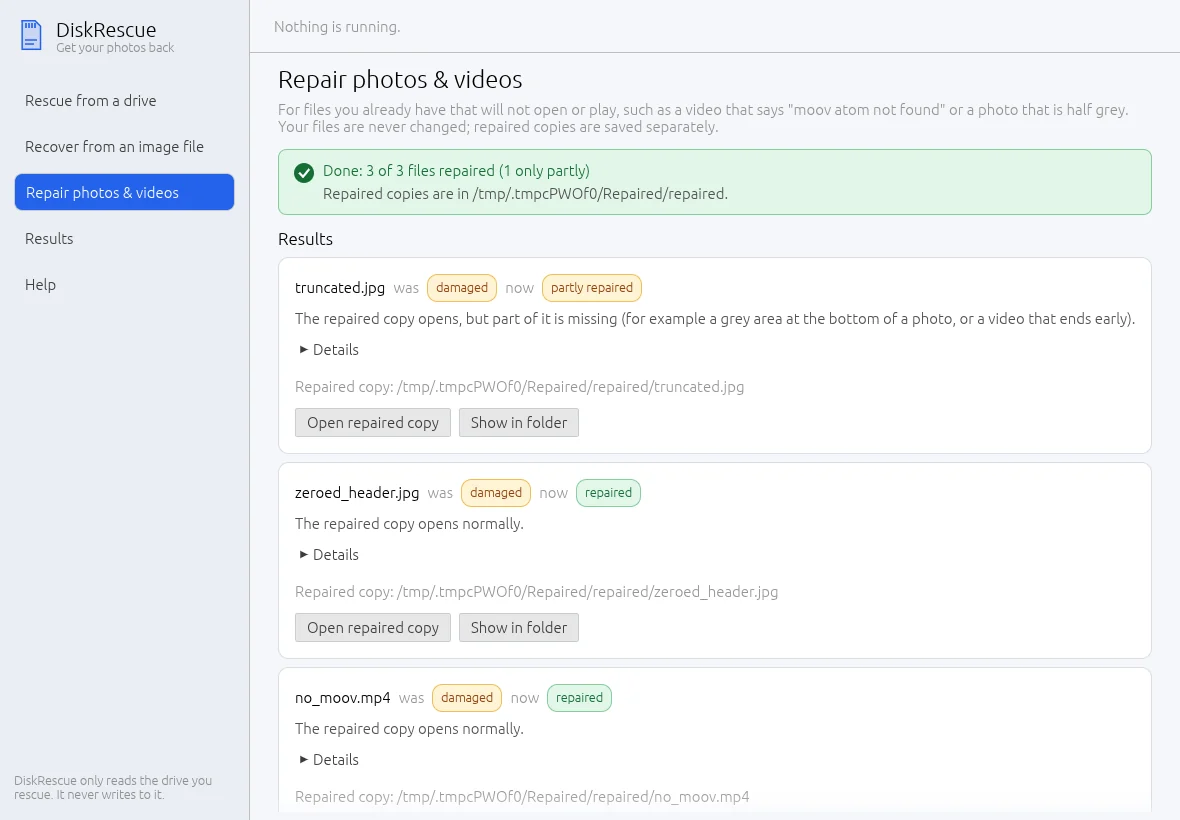
Read the result
| Result | Meaning |
|---|---|
| repaired | The repaired copy opens normally |
| partly repaired | The copy opens, but part is missing: a grey area at the bottom of a photo, or a video that ends early |
| This file is not damaged. | Nothing needed fixing |
| This file could not be read as a photo or video. | The format is not one DiskRescue can repair |
Select Open repaired copy or Show in folder. Repaired copies are in a repaired folder inside the folder you chose.
Good to know
A repair cannot bring back data that is not in the file. A photo whose lower half was never saved stays grey there.