
Change lighting
The Lighting tab sets the RGB lights of a mouse or keyboard. You can give each lighting zone an effect and a colour, and on keyboards with per-key RGB you can paint single keys.
A lighting zone is one part of the device that lights up on its own, such as the logo or the scroll wheel of a mouse.
Set an effect

Select the device under Devices and open the Lighting tab.
Next to Zone, choose the zone to change, or All zones to change every zone at once.
Under Effect, select an effect. Gearwise only shows the effects your device supports.
Under Colour, select one of the colour swatches. To use any other colour, select the colour square and pick one, or type a hex value such as
#00d4aain the box next to it.Drag Brightness to set how bright the lights are.
The Live preview card shows the device with its zones in their current colours, and names the zone and effect underneath.
Effects
| Effect | What it does | Extra settings |
|---|---|---|
| Off | Turns the zone off. | None |
| Static | One steady colour. | Colour |
| Breathing | The colour fades in and out. | Colour, Cycle time |
| Color cycle | Moves through all colours. | Cycle time |
| Wave | A rainbow that moves across the device. | Cycle time, Direction |
| Reactive | Keys light up when pressed, then fade. | Colour, Fade time |
Cycle time runs from 0.5 to 20 seconds. Fade time runs from 0.1 to 3 seconds. Direction is Left to right or Right to left.
Corsair devices support static colours for each zone and for each key, but not animated effects.
Paint single keys
Keyboards with per-key RGB have a switch with two choices at the top right of the tab: Effects and Per-key.
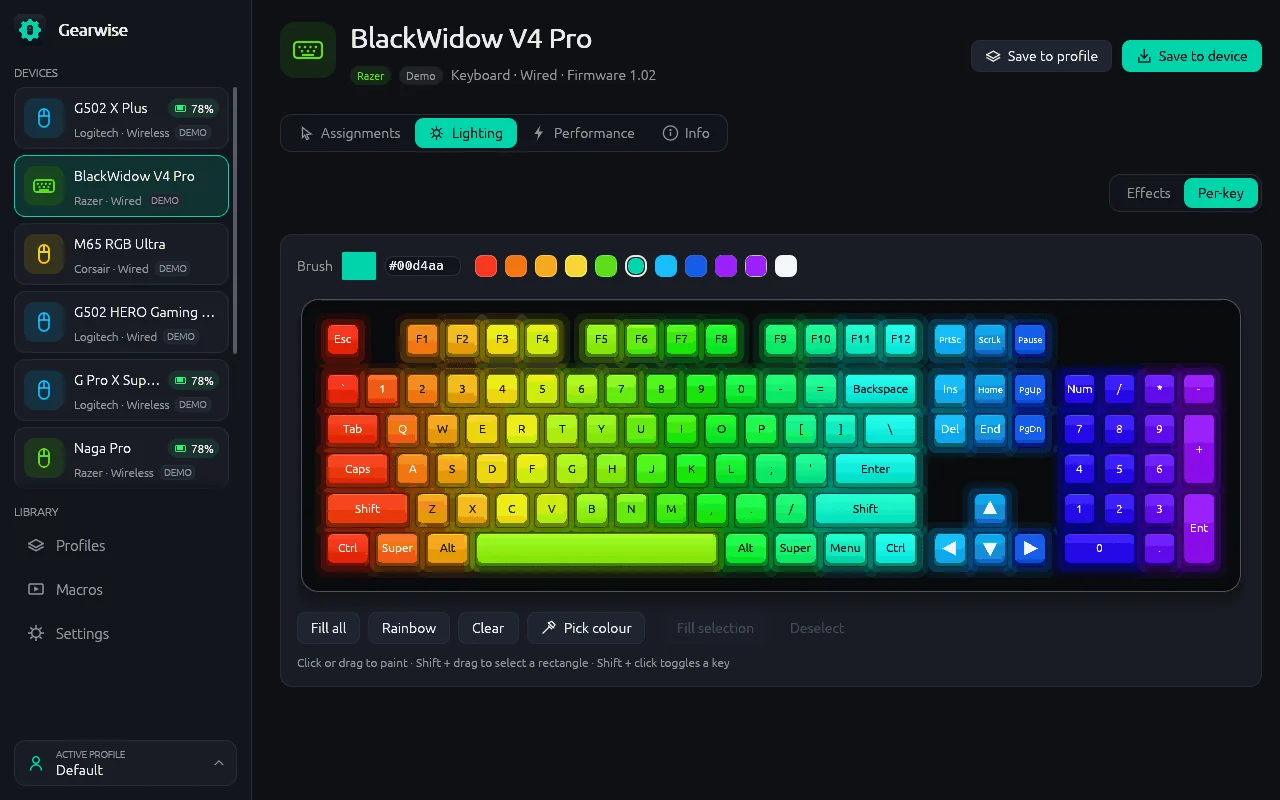
Select Per-key.
Next to Brush, choose a colour: select a swatch, type a hex value, or select the colour square.
Click a key to paint it, or drag across several keys.
The buttons under the keyboard do the rest:
| Button | What it does |
|---|---|
| Fill all | Paints every key with the brush colour. |
| Rainbow | Paints the keys in a rainbow. |
| Clear | Turns every key off (black). |
| Pick colour | Takes the colour of the next key you click as the brush colour. |
| Fill selection | Paints the selected keys. Shows the number of keys, such as Fill 12 selected. |
| Deselect | Clears the selection. |
To select keys, hold Shift and drag a rectangle, or hold Shift and click single keys to add or remove them.
Good to know
Some keyboards are lit by the computer rather than by their own memory. Gearwise keeps their colours while it is running.
Keep your lighting
Gearwise records lighting changes in the active profile and applies them again when the device connects. To store the lighting in the device itself, select Save to device in the header. See Use onboard profiles.