
Beginner guide: your first ten minutes
By the end of this page you will have opened Gearwise, found your mouse or keyboard in it, learned the parts of the window, changed a sensitivity setting and kept that change in a profile. No device to hand? The demo devices let you follow every step without hardware.
What you need
- Gearwise installed. See Install.
- On Linux, the udev rule in place. The PPA and
.debpackages install it for you. See Set up Linux permissions. - A supported Logitech, Razer, Corsair or SteelSeries mouse or keyboard, or none at all if you use the demo devices.
- On Windows, the vendor's own software closed: Logitech G HUB, Razer Synapse, Corsair iCUE or SteelSeries GG.
A few words first
- DPI (dots per inch) is how far the pointer moves when you move the mouse one inch. Higher DPI means a faster pointer.
- A DPI stage is one saved DPI value. Many mice have a button that steps through the stages.
- A profile in Gearwise is a named set of settings, kept on your computer. Gearwise records your changes in the active profile and applies them again when the device connects.
- An onboard profile is a set of settings stored inside the device itself, so it works on any computer.
Open Gearwise and find your device
Plug in your mouse or keyboard, or turn on its wireless receiver.
Start Gearwise from your applications menu. On the tarball or on Windows, run
./gearwiseorgearwise.exe.Look at the Devices list at the top of the sidebar. Each device shows its name, brand and connection, and the battery level if it has one.
If the list says No devices connected, the main area shows Connect a device.
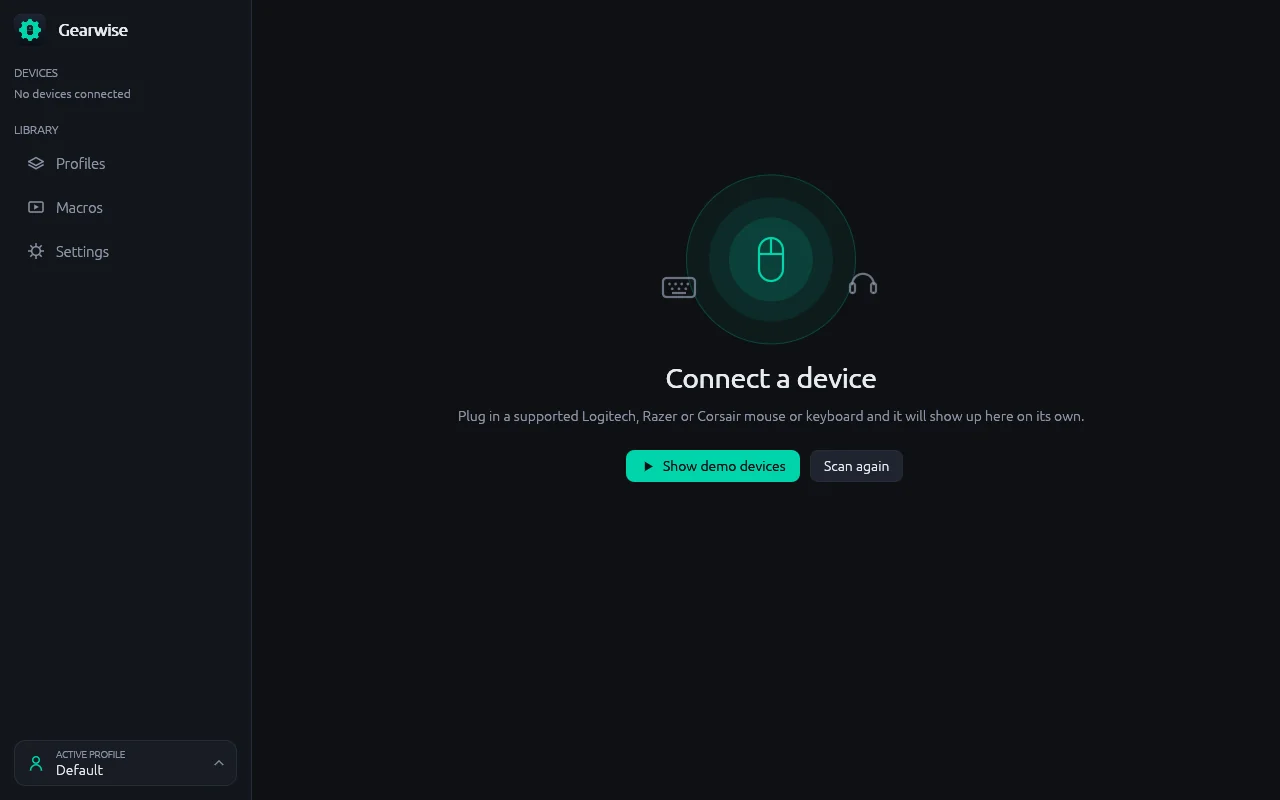
With nothing connected, you can scan again or open the demo devices. If your device is plugged in but not listed, select Scan again. To explore without hardware, select Show demo devices.
Demo devices are marked DEMO in the list. They are simulated and never touch real hardware.
Select your device in the list. Its page opens.
If a banner at the top says that devices could not be opened, follow Set up Linux permissions on Linux, or close the vendor's software on Windows.
Find your way around
The device page has a header, a row of tabs, and the tab's content. The tabs you see depend on what the device can do: a keyboard has no Sensitivity tab, for example.
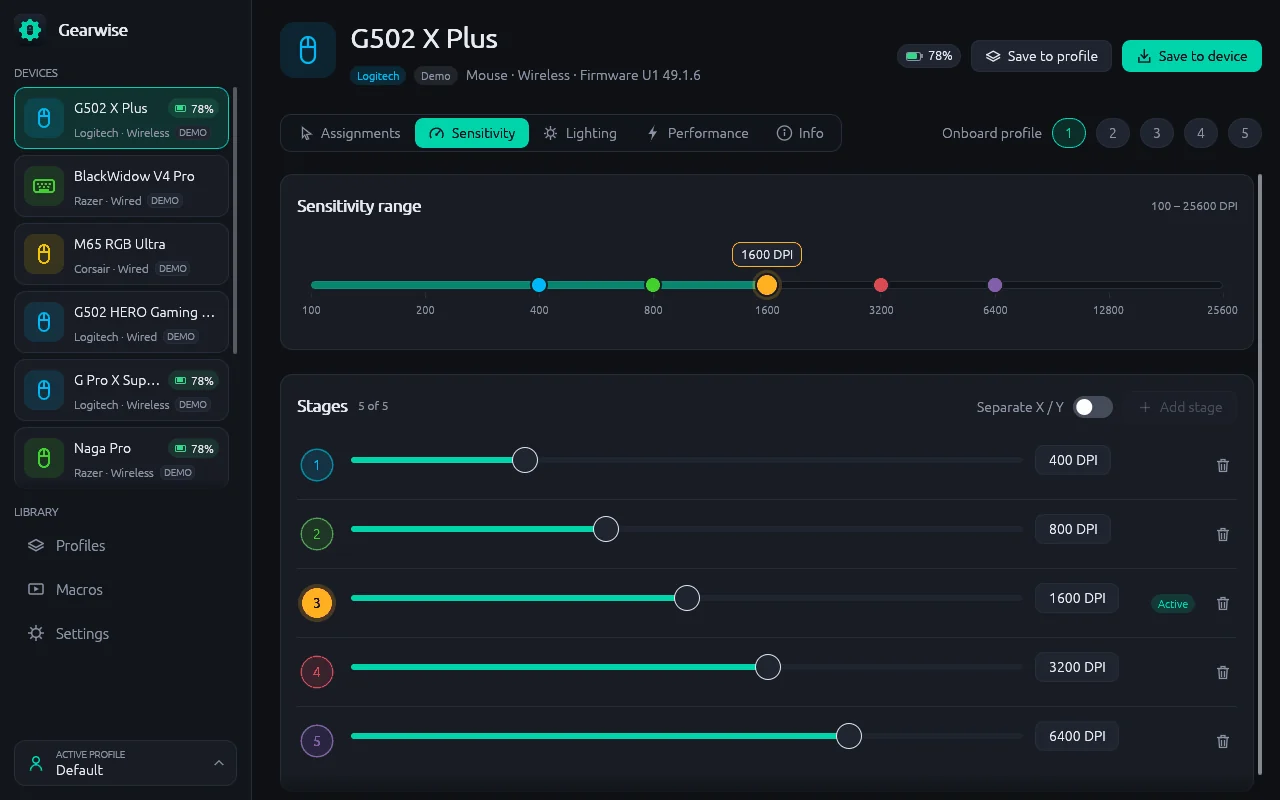
- 1Devices — Every connected device. The selected one has a coloured border.
- 2Tabs — Assignments, Sensitivity, Lighting, Performance and Info, where the device has them.
- 3Save to profile and Save to device — Store the settings in the active profile, or write them to the memory of the device.
- 4Sensitivity range — The full DPI range of the sensor, with a dot for each stage.
- 5Add stage — Adds a stage, up to the number the device allows.
- 6Stage number — Select a number to make that stage the active one.
- 7DPI value — The DPI of the stage. Drag the slider or type a value.
- 8Active profile — The profile that records your changes.
The sidebar also has a Library with three pages that are shared by all devices: Profiles, Macros and Settings.
Change a DPI stage
Changes in Gearwise go to the device straight away. There is no Apply button.
Select a mouse and open the Sensitivity tab.
Under Stages, drag the slider of stage 1, or select its DPI value and type a new number, such as
800.Gearwise snaps the value to a step the sensor really supports.
Move the mouse. The pointer speed changes a moment after you change the value.
To use a different stage, select its number on the left. The Active label moves to that stage.
Keep the change
Gearwise records every change in the active profile while it runs. You can also save on purpose:
- Save to profile stores all the current settings of this device in the active profile. A message confirms how many settings were saved.
- Save to device writes the current settings to the memory of the device, so they stay when you use the device on another computer without Gearwise.
The name of the active profile is at the bottom of the sidebar. A new installation starts with one profile, called Default.
What you learned
- The Devices list shows what Gearwise found. Show demo devices lets you explore without hardware.
- Each device has tabs for the settings it supports. Changes apply at once.
- The active profile remembers your changes on this computer. Save to device stores them in the device.