
Browse and transfer files
Look through a device's storage, copy files to it and from it, and tidy up with new folders, renames and deletes.
Push and pull
ADB uses two words for copying files. To push is to copy a file from your computer to the device. To pull is to copy a file from the device to your computer.
Move around
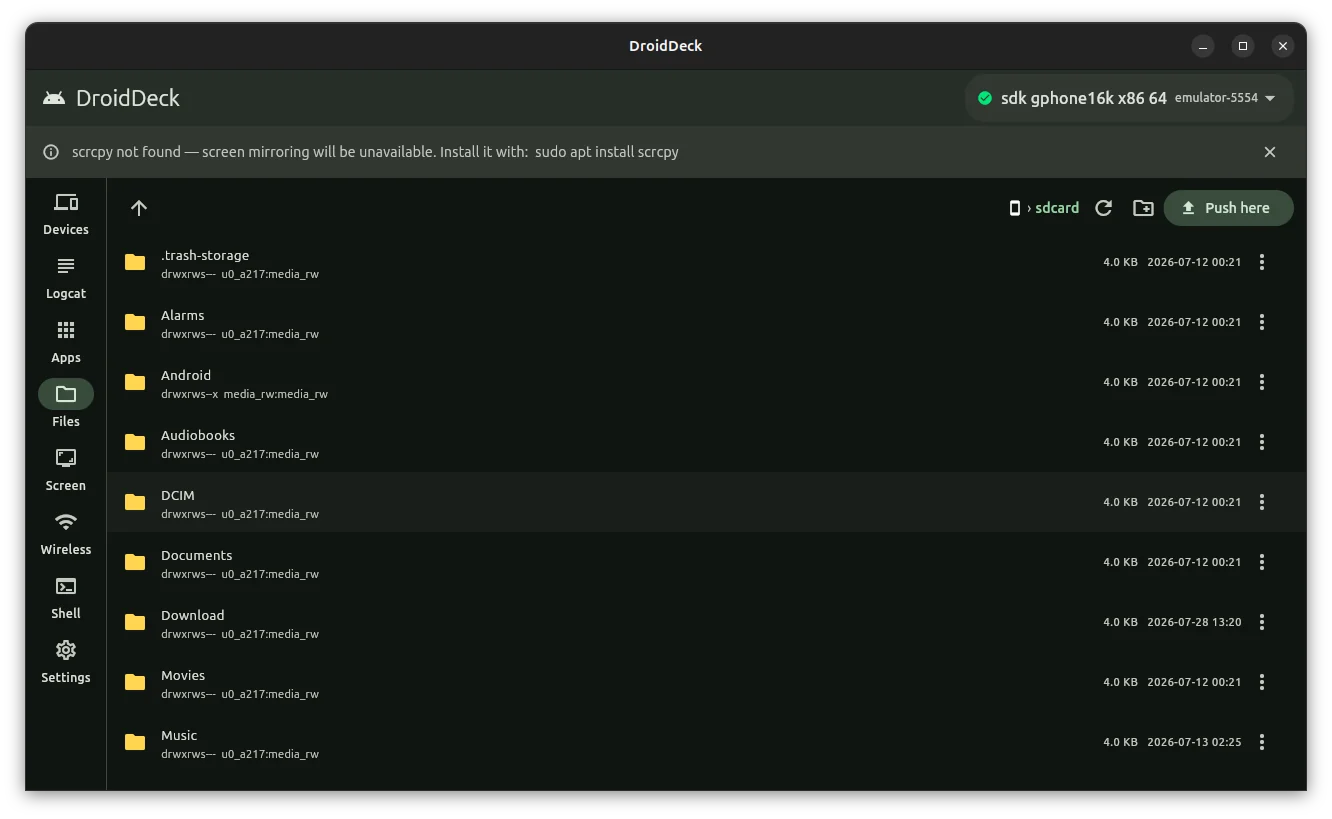
The tab opens in /sdcard, the shared storage where photos, downloads and documents live.
- Select a folder to open it. Entries with a link icon are shortcuts to another folder and open the same way.
- Select Up, the arrow at the top left, to go to the parent folder.
- The path at the top is a row of links. Select any part to jump to it. The phone icon at its start is the root of the device,
/. - Select Refresh, the round arrow, to read the folder again.
Folders are listed first, then files, each group in alphabetical order. Under each name are its permissions, owner and group. On the right are its size and the date it was last changed.
Much of the device outside /sdcard is closed to ADB on a normal phone. When you open a folder you are not allowed to read, the tab shows Cannot open, the path and the reason. Select Go up to return.
Push files to the device
Browse to the folder on the device where the files should go.
Select Push here and choose one or more files.
Or drag files from your file manager and drop them anywhere on the Files tab.
Watch the Transfers panel at the bottom. Each file gets a row with a progress bar, then a green tick when it is done.
The folder listing refreshes when the pushes finish. If one file fails, the files after it in the same batch are not sent.
WARNING
A pushed file replaces a file of the same name in that folder on the device, without asking.
Pull a file to your computer
Select the three dots at the right end of the file's or folder's row.
Select Pull to ~/Downloads.
Wait for the message Saved to, followed by the path.
Pulled files always go to your Downloads folder, under their own name. Pulling a folder copies everything inside it. A file of the same name already in Downloads is replaced, so move or rename earlier copies you want to keep.
The Transfers panel
The panel appears at the bottom of the tab once you push or pull something. It shows the three most recent transfers: a spinning icon while one runs, a green tick when it succeeded, a red icon and the error when it failed. Select Clear finished to remove completed rows.
Create a folder
Select New folder, the folder icon with a plus sign.
Type a name in Folder name and select Create.
Rename a file or folder
Open the entry's menu with the three dots and select Rename….
Type the new name in New name. For a file, the part before the extension is selected for you, so typing replaces the name and keeps the extension.
Select Rename.
Rules for names, in both New folder and Rename:
- A name cannot contain
/, and cannot be.or... The button stays greyed out until the name is valid. - A name that is already taken in that folder is refused. Rename never overwrites another file.
- Changing only upper and lower case, such as
IMG.JPGtoimg.jpg, works.
Delete a file or folder
Open the entry's menu with the three dots and select Delete….
Read the question, which names the entry, and select Delete to go ahead, or Cancel.
DANGER
Delete removes the file from the device for good. There is no recycle bin and no undo. Deleting a folder deletes everything inside it. DroidDeck says so before you confirm: The folder and everything inside it will be deleted from the device. This cannot be undone. Pull a copy first if you are not sure.
Copy a path
Open an entry's menu and select Copy device path to put its full path, such as /sdcard/Download/report.pdf, on the clipboard. Paste it into the Shell tab or a bug report.
Next steps
- Use the screen tools
- Use the shell and quick actions
- Reference: where files are saved on your computer.